


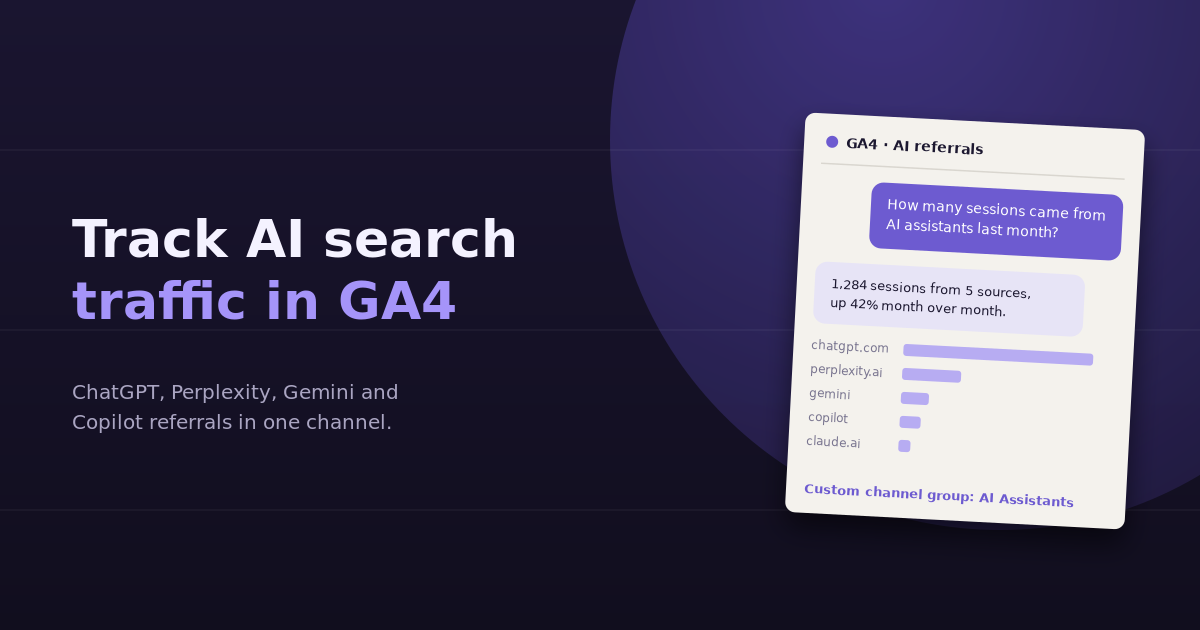
More people now start research in ChatGPT, Perplexity, Gemini, or Copilot instead of a search engine, and some of them click through to your site. By default, GA4 buries those visits inside the Referral channel, mixed in with every other site that links to you. To track AI traffic in GA4 properly, you need a dedicated channel that groups AI assistant referrals together, so you can see how much traffic they send, which pages they land on, and whether those visitors convert.
This guide shows how to find AI referrals in your existing data, build a custom channel group for AI assistants, report on it, and understand what GA4 can’t see.
Where AI Traffic Shows Up in GA4 Today
When someone clicks a link inside an AI assistant’s answer, the visit usually arrives with a referrer from the assistant’s domain. GA4 classifies most of these under the Referral channel, with the session source set to the domain, such as chatgpt.com or perplexity.ai. Some assistants also append UTM parameters to outbound links; ChatGPT, for example, commonly adds utm_source=chatgpt.com.
To see what you’re already getting:
- Go to Reports, then Acquisition, then Traffic acquisition
- Change the primary dimension to Session source / medium
- Search the table for terms like chatgpt, perplexity, gemini, copilot, and claude
That gives you a quick count, but it’s tedious to repeat and impossible to trend cleanly. A custom channel group solves both problems.
Common AI Referral Sources
| Assistant | Typical source values |
|---|---|
| ChatGPT | chatgpt.com, chat.openai.com (older links) |
| Perplexity | perplexity.ai, www.perplexity.ai |
| Google Gemini | gemini.google.com |
| Microsoft Copilot | copilot.microsoft.com |
| Claude | claude.ai |
| Others | you.com, meta.ai, deepseek, and new assistants as they appear |
Check your own source list for others. New assistants launch regularly, and domains occasionally change.
Step-by-Step: Build an AI Assistants Channel in GA4
Custom channel groups let you define your own channels without changing the default channel group. You need Editor access or higher on the property.
Step 1: Create a new channel group
In GA4 Admin, under Data display, open Channel groups. Create a new channel group, or copy the default one so you keep all the standard channels. Give it a clear name, such as “Channels with AI Assistants.”
Step 2: Add an “AI Assistants” channel
Add a new channel and name it “AI Assistants.” Set the condition to Source, matches regex, and use a pattern like:
.*(chatgpt|openai|perplexity|gemini\.google|copilot\.microsoft|claude\.ai|you\.com|meta\.ai|deepseek).*
Adjust the list to match the sources you actually see in your data.
Step 3: Move it above Referral
GA4 evaluates channels in order and assigns each session to the first channel whose conditions it matches. If Referral sits above your new channel, AI visits will still be classified as Referral. Drag “AI Assistants” above Referral (and above any other channel that could catch these sessions) and save.
Step 4: Use it in reports
In the Traffic acquisition report, open the primary dimension selector and choose your new channel group. You’ll now see AI Assistants as its own row, alongside Organic Search, Paid Search, and the rest. Custom channel groups can also be applied to historical data, which means you can see trends from before you created the group.
What to Report On
A session count alone doesn’t tell you much. These are the views worth building:
- AI sessions over time: monthly trend, and share of total sessions
- By assistant: which tools send the most traffic
- Landing pages: which pages AI assistants link to, which shows what content they consider useful
- Engagement rate and key events: whether AI visitors behave differently from organic search visitors
- Revenue or leads: what AI traffic is actually worth
In many sites, AI referral traffic is still small in volume compared with organic search, but it often arrives with high intent because the visitor has already been given context about your page. Comparing conversion rate against organic search helps you decide how much attention it deserves.
What GA4 Can’t See
This setup measures visits that arrive with an identifiable AI referrer or UTM. It undercounts AI’s real influence for several reasons:
- Missing referrers. Clicks from some desktop and mobile apps don’t pass referrer information, so they show up as Direct.
- Copy-and-paste visits. A user who copies a URL from an AI answer into their browser looks like Direct traffic.
- Brand searches after an AI answer. Someone who reads about your product in ChatGPT and then searches your brand name on Google shows up as Organic Search.
- No click at all. Often the AI answer itself is the outcome. The user learns about you, but never visits.
That last point is the biggest. AI referral traffic measures clicks; it doesn’t measure visibility. To understand how often your brand appears in AI answers, you need to track mentions and citations separately. Our guide to AI visibility metrics covers what to measure there.
Supporting Signals Worth Watching
Because referral tracking is incomplete, it helps to watch indirect signals alongside it:
- Direct traffic to deep pages. A rise in direct sessions landing on specific blog posts, rather than the homepage, can indicate uncredited AI referrals.
- Branded search impressions in Search Console. Growing brand queries can reflect discovery that started in an AI tool.
- Self-reported attribution. Adding “How did you hear about us?” to sign-up or demo forms, with an AI assistant option, often reveals more AI influence than analytics alone.
Common Mistakes
- Placing the channel below Referral, so nothing gets classified as AI
- Using a regex that’s too broad, such as matching “ai” anywhere, which catches unrelated domains
- Forgetting UTM-tagged visits, if your condition only checks the referrer domain and not the source value
- Treating AI traffic as the full picture of AI search visibility
For broader context on how this fits into an SEO reporting setup, see our guide to SEO analytics, and for what else belongs in your GA4 reporting, our list of GA4 KPIs.
Frequently Asked Questions
Does GA4 track ChatGPT traffic automatically?
GA4 records visits from ChatGPT when the visit arrives with a ChatGPT referrer or UTM source, but it classifies them under the Referral channel by default. A custom channel group is needed to see AI assistant traffic as its own channel.
What regex should I use to track AI traffic in GA4?
A common starting pattern matches sources containing chatgpt, openai, perplexity, gemini.google, copilot.microsoft, claude.ai, and other assistants you see in your data. Check your Session source report regularly and add new domains as they appear.
Why is my AI traffic in GA4 so low?
Many AI-influenced visits don't carry a referrer, so they appear as Direct. Others result in a branded Google search rather than a direct click, and many AI answers satisfy the user without any click. GA4 referral data shows only part of AI's influence.
Will a custom channel group change my historical GA4 data?
Custom channel groups don't alter your underlying data, and they can be applied retroactively in reports. That means you can view AI Assistants as a channel for past periods as well as going forward.
Should AI traffic be part of SEO reporting?
Yes, alongside organic search rather than inside it. AI referrals and AI visibility are increasingly part of how people find content, so reporting them next to organic search gives a more complete picture of search performance.
Do Google AI Overviews show up as AI traffic in GA4?
Generally no. Clicks from AI Overviews in Google Search are typically attributed to Google organic search, not to a separate AI source, so they won't appear in a channel built from AI assistant referrer domains.
Once your AI Assistants channel is set up, connect GA4 to ConvoData and ask how AI traffic is trending, which pages it lands on, and whether it converts better than organic search, without rebuilding the report each month. Plans start at $39/month.