


LinkedIn Ads are often the most expensive clicks in a B2B marketing budget, which makes it more important, not less, to know what they produce. LinkedIn’s Campaign Manager reports leads and conversions, but it can’t tell you which of those leads became qualified opportunities or closed deals. HubSpot can. Setting up LinkedIn Ads HubSpot attribution properly connects ad spend to the pipeline it creates, so you can judge campaigns on revenue rather than cost per lead.
This guide covers how the integration works, a five-step setup, which attribution models to use, the reports worth building, and the gaps to watch for.
Why LinkedIn Attribution Is Harder Than It Looks
- Long B2B sales cycles: a lead generated this month may not become an opportunity for months
- Multiple stakeholders: several people from the same company may interact with ads before one converts
- Lead Gen Forms: LinkedIn’s native forms capture leads without a website visit, so web analytics never sees them unless they’re synced
- View-through influence: many LinkedIn impressions influence decisions without a click
- Different counting rules: LinkedIn counts conversions within its attribution windows; HubSpot attributes based on contact and deal records
The result is that LinkedIn reports and HubSpot reports will rarely agree, and both are partially right.
How the HubSpot–LinkedIn Integration Works
HubSpot’s ads tool can connect a LinkedIn Ads account. Once connected, it can:
- Pull campaign spend, impressions, and clicks into HubSpot
- Sync LinkedIn Lead Gen Form submissions into HubSpot as contacts
- Associate contacts with the ads they interacted with, where tracking allows
- Build audiences from HubSpot lists for targeting and exclusions
- On supported tiers, send CRM events such as lifecycle stage changes back to LinkedIn as conversions
The specific features available depend on your HubSpot edition, so check your account’s ads settings.
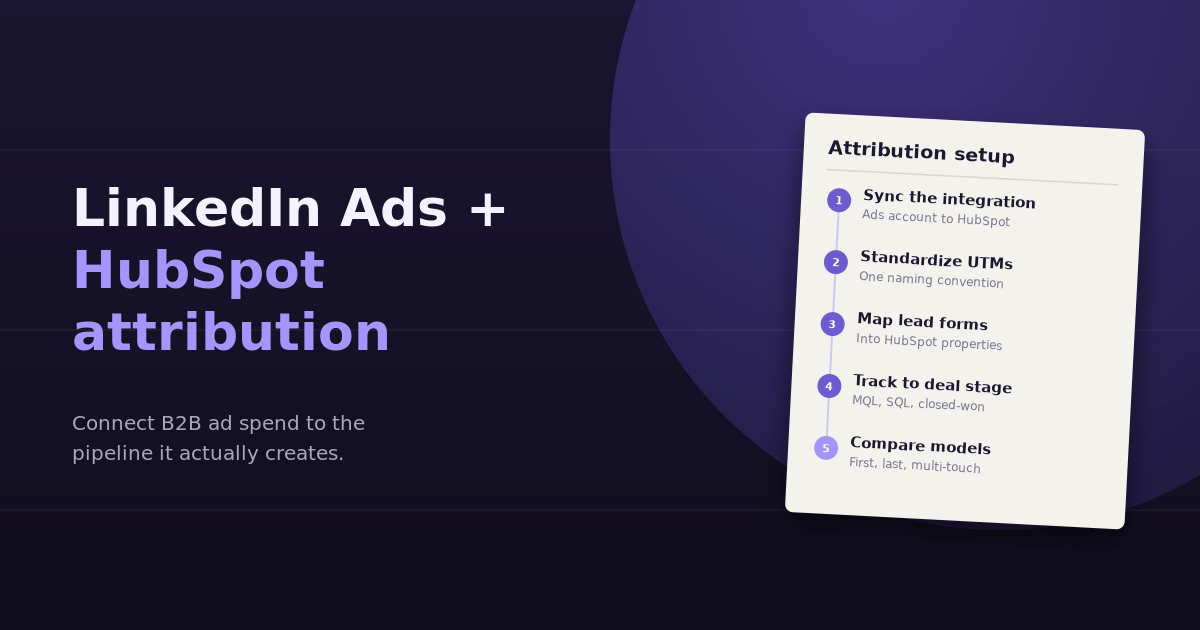
Five-Step Setup
Step 1: Connect the LinkedIn Ads account
In HubSpot’s ads tool, connect the LinkedIn ad account, and enable tracking options so HubSpot can associate ad clicks with contacts. Make sure the LinkedIn Insight Tag is installed on your site, which HubSpot can help deploy.
Step 2: Standardize UTM parameters
Even with the integration, consistent UTMs make attribution more reliable and keep GA4 aligned. Use one convention across all campaigns, for example utm_source=linkedin&utm_medium=paid_social&utm_campaign=[campaign-name], and keep campaign names identical between LinkedIn and your UTMs.
Step 3: Map Lead Gen Forms into HubSpot
If you use LinkedIn Lead Gen Forms, sync them to HubSpot and map each form field to the correct HubSpot property. Set a property or source value that identifies these contacts as coming from LinkedIn, so they’re not lost in “offline sources” or “other.”
Step 4: Track contacts through to deal stage
Attribution is only useful if lifecycle stages are recorded consistently. Confirm that contacts move to MQL and SQL by clear rules, that deals are associated with contacts, and that closed-won deals carry an amount. Without this, revenue attribution has nothing to attribute.
Step 5: Compare attribution models
Use HubSpot’s attribution reporting (available on higher tiers) to view LinkedIn’s contribution under several models, rather than relying on one.
Choosing an Attribution Model
| Model | How it credits LinkedIn | Good for | Watch out for |
|---|---|---|---|
| First touch | Full credit if LinkedIn created the contact | Measuring demand creation | Ignores everything that happened later |
| Last touch | Full credit if LinkedIn was the final interaction before conversion | Measuring direct conversion drivers | Usually undercredits LinkedIn in B2B |
| Linear | Equal credit across all touchpoints | A balanced view of the journey | Treats minor and major touchpoints the same |
| U-shaped / W-shaped | Extra credit to first touch, lead creation, and (W) opportunity creation | B2B journeys with clear milestones | Requires consistent milestone tracking |
| Time decay | More credit to interactions closer to conversion | Short, intent-driven cycles | Undervalues early awareness |
For LinkedIn specifically, first touch and U- or W-shaped models usually reflect its role best, because LinkedIn often introduces a buyer who later converts through search, email, or a sales conversation. Looking at last touch alone typically makes LinkedIn look worse than it is.
Reports Worth Building
- Cost per MQL and SQL by campaign: LinkedIn spend divided by qualified leads from each campaign
- Pipeline created by campaign: total value of deals associated with LinkedIn-sourced contacts
- Closed-won revenue and ROAS: revenue from LinkedIn-influenced deals versus spend, by attribution model
- Lead Gen Form vs landing page: lead quality by conversion path, since Lead Gen Forms often produce more leads at lower intent
- Time to opportunity: how long LinkedIn-sourced contacts take to reach SQL, which tells you how long to wait before judging a campaign
Common Gaps and How to Close Them
Contacts with unknown source
Missing UTMs, unsynced forms, or blocked tracking leave contacts without a source. Audit a sample of recent contacts regularly to see how many have no original source.
Mismatched campaign names
If LinkedIn campaign names don’t match UTM values, joining spend to outcomes becomes manual. Fix naming at the source.
Judging too early
With long sales cycles, cohort-based reporting is essential: compare a campaign’s spend with what its leads eventually produce, not what they produced in the same month.
Ignoring account-level influence
Several contacts from one target account may engage with ads while only one fills a form. Company-level reporting in HubSpot helps show that influence.
For the funnel metrics that sit underneath these reports, see our guide to lead generation KPIs. For the same approach applied to search campaigns, see how to combine HubSpot and Google Ads data to find true cost per lead. And if you’re explaining attribution to clients, our guide to agency client retention covers how better reporting supports renewals.
Frequently Asked Questions
Can HubSpot track LinkedIn Ads ROI?
Yes. By connecting LinkedIn Ads in HubSpot's ads tool and tracking contacts through lifecycle stages and deals, HubSpot can report spend against contacts, pipeline, and closed-won revenue from LinkedIn campaigns. Detailed multi-touch attribution reports require higher HubSpot tiers.
Why do LinkedIn and HubSpot report different numbers of leads?
LinkedIn counts conversions within its own attribution windows, potentially including view-through conversions, while HubSpot counts contact records and their recorded sources. Duplicate contacts, unsynced Lead Gen Forms, and missing UTMs also contribute to the gap.
Which attribution model is best for LinkedIn Ads?
First touch and U- or W-shaped models usually reflect LinkedIn's role best in B2B, because it often introduces buyers who convert later through other channels. Comparing several models side by side is more informative than relying on one.
Do LinkedIn Lead Gen Forms sync to HubSpot automatically?
They can, once the LinkedIn Ads account is connected and the forms are mapped in HubSpot. Check that each form field maps to the right HubSpot property and that synced contacts are clearly marked as LinkedIn-sourced.
How long should I wait before judging a LinkedIn campaign?
At least as long as your typical time from lead to opportunity. Use cohort reporting to compare a campaign's spend with what its leads produce over the following months, rather than same-month results.
Can I send HubSpot deal data back to LinkedIn?
On supported HubSpot tiers, you can send CRM events such as lifecycle stage changes to LinkedIn as conversions, which lets LinkedIn optimize toward qualified leads rather than raw form fills.
See which LinkedIn campaigns actually create pipeline. Connect LinkedIn Ads and HubSpot to ConvoData, ask for cost per SQL and pipeline by campaign, and move budget toward what works from the same chat. Plans start at $39/month.