


Open a GA4 exploration report looking for last year’s holiday traffic and you might find nothing there at all. That’s not a bug — it’s GA4’s data retention setting, and it catches a lot of marketers off guard.
Unlike Universal Analytics, which could hold event-level data indefinitely, GA4 defaults to trimming it after a set window. Miss that detail early on, and you lose the ability to compare this year’s campaign against last year’s the moment you need it most.
This guide covers exactly how GA4 retention works, what data it affects, how to extend or bypass the limit, and what to do if you’re already past the default window and need older numbers back.
What Is GA4 Data Retention?
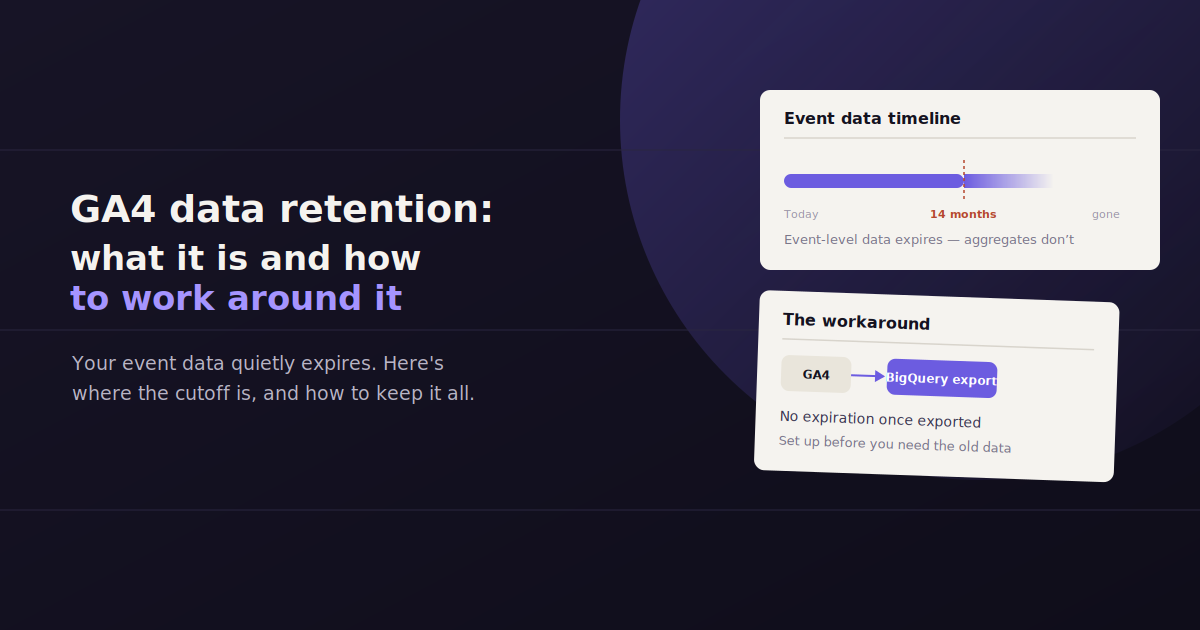
GA4 data retention controls how long user-level and event-level data stays queryable in Explorations before it’s automatically deleted. The default is 14 months, adjustable up to 14 months on standard GA4 or longer on GA4 360, but it does not affect standard aggregated reports.
Data retention in GA4 is a setting, found under Admin > Data Settings > Data Retention, that controls how long event-level data is available for ad hoc analysis in the Explore section.
It’s easy to confuse this with GA4 deleting your data outright. It doesn’t — retention only limits how long raw event data stays queryable for custom explorations. Your standard reports, the ones showing users, sessions, and conversions over time, aren’t bound by this same limit in the same way.
That distinction matters because most marketers only discover the setting exists when a custom exploration comes back empty for a date range they expected to still be there.
The Default GA4 Retention Period
GA4’s default retention setting for event-level data is 14 months, and it applies to both event data and any user-level data tied to those events.
Some demographic-related data, like age, gender, and interest signals pulled from Google Signals, defaults to a shorter 2-month retention window regardless of what you set for general event data.
GA4 360, the paid enterprise tier, allows longer retention windows — up to 50 months in some configurations — which matters for organizations that need multi-year trend analysis inside GA4 itself rather than exporting to a warehouse.
Event data: defaults to 14 months on standard GA4, configurable down to 2 months or up on GA4 360.
User-level data: follows the same retention window as event data by default.
Demographic and interest data: locked to a shorter retention period regardless of your event data setting.
Standard aggregated reports: not subject to the same hard deletion — this is why your main dashboard numbers can look different from an Exploration pulling the same date range.
How to Check and Change Your Retention Setting
The setting lives in GA4’s admin panel, and it’s worth checking on day one of any new property rather than waiting until you need older data and discover it’s already gone.
Changing the setting going forward only affects data collected after the change — it does not retroactively restore anything that’s already been deleted under a shorter window.
Go to Admin in your GA4 property.
Under Data collection and modification, select Data retention.
Set Event data retention to your desired window (2 or 14 months on standard GA4).
Save the change — remember it only applies going forward, not retroactively.
Why GA4’s Retention Limit Trips Up Marketing Teams
Universal Analytics didn’t have this constraint in the same way, so teams migrating from UA to GA4 often assume historical data will simply keep accumulating the way it used to.
The gap shows up most painfully during year-over-year reporting. A team building a Q4 report in January might find they can’t run a custom exploration comparing this holiday season to last, even though the standard reports still show some historical trend.
Agencies managing multiple client GA4 properties face this at scale — one missed retention setting across even a handful of accounts means a real gap in the data available for annual strategy reviews.
Year-over-year comparisons break down once event-level data ages past the retention window.
Custom audience definitions built on historical event data lose accuracy as the underlying events are purged.
Migrated UA accounts often carry an assumption of unlimited history that GA4 simply doesn’t match by default.
How to Bypass the GA4 Data Retention Limit
The most reliable way to bypass GA4’s 14-month retention cap is to export raw event data into Google BigQuery, where it can be stored indefinitely and queried without the retention window applying at all.
The cleanest workaround is exporting your raw GA4 event data into Google BigQuery, which is available even on the free GA4 tier and stores data outside of GA4’s own retention rules.
Once data lives in BigQuery, it isn’t subject to the 14-month cap at all — you control storage duration, and it becomes queryable with SQL for deeper historical analysis than GA4’s own interface supports anyway.
The tradeoff is setup complexity. Configuring the BigQuery export and building queries or dashboards on top of it typically requires someone comfortable with SQL, or a reporting tool that can connect to BigQuery on your behalf.
Setting Up the BigQuery Export
In GA4, go to Admin > Product Links > BigQuery Links and connect a Google Cloud project. From that point forward, raw event data streams into BigQuery daily.
It’s worth setting this up immediately for any property you expect to run for more than a year — there’s no way to retroactively export data that GA4 has already purged.
Alternative: Scheduled Exports to a Reporting Tool
If BigQuery feels like more infrastructure than your team wants to manage, a reporting tool that regularly pulls and stores GA4 data on its own schedule accomplishes a similar goal — the data lives outside GA4’s retention window once it’s captured.
This is a lighter lift for smaller teams, though it depends on the reporting tool actually archiving historical pulls rather than just displaying a live, refreshing view of current GA4 data.
GA4 vs. Universal Analytics: How Retention Rules Changed
Universal Analytics let properties retain data essentially indefinitely for standard reporting, which trained a generation of marketers to treat historical GA data as a permanent record they could revisit any time.
GA4’s shift to an event-based data model came with a different default philosophy — shorter retention windows for granular, user-level data, in part reflecting broader privacy and data-minimization trends across Google’s products.
The practical result is that teams who migrated from UA to GA4 without adjusting the retention setting, or without setting up a BigQuery export, often don’t notice the gap until they go looking for a year-over-year comparison and find the older event data simply isn’t there anymore.
Data Retention and Agency Client Reporting
Agencies managing GA4 for multiple clients face a version of this problem that compounds with account count. One overlooked retention setting on a single client property is a minor gap; the same oversight across a roster of 20 accounts is a real reporting liability.
It’s worth building a retention check into new client onboarding — confirming the setting is maximized and, ideally, that a BigQuery export or an external reporting tool is already capturing data before the first month passes.
This matters most for clients on annual contracts or seasonal businesses, where a January strategy review depends on comparing this year’s holiday performance against last year’s. If that comparison data was never preserved outside GA4’s own retention window, there’s no way to reconstruct it after the fact.
Audit retention settings on every client property during onboarding, not after a report request surfaces a gap.
Document the setting per client so a team member covering for someone on leave doesn’t have to guess whether history is being preserved.
Set up historical capture early — whether BigQuery or a connected reporting tool — since there’s no way to backfill data GA4 has already purged.
What Happens If You’ve Already Lost Historical Data
If your retention window has already purged data you needed, there’s no way to pull deleted event-level data back out of GA4 itself — Google doesn’t offer a restore option for expired data.
Your best remaining option is checking whether the aggregated data still exists in standard reports, since those aren’t purged the same way exploration-level event data is. It won’t have the same granularity, but it can fill some of the gap.
Going forward, the fix is simple: set retention to its maximum allowed window immediately, and set up a BigQuery export or a reporting tool that captures and stores data on its own schedule, so this doesn’t happen again.
Keeping Historical Data Usable Without Manual Exports
Exporting to BigQuery solves the storage problem, but it doesn’t solve the analysis problem on its own — someone still needs to query that data and turn it into something a stakeholder can read.
This is where a conversational reporting layer helps. ConvoData connects to GA4 and other marketing data sources and lets you ask questions in plain English — “how does this year’s Q4 traffic compare to last year’s” — pulling from historical data you’ve retained rather than being limited to whatever GA4’s own retention window still holds.
It won’t restore data GA4 has already purged, but it removes the ongoing risk: once your data is flowing into a connected source with its own history, a retention setting buried in GA4’s admin panel stops being something you have to remember to check.
Data retention settings are just one part of getting GA4 configured properly — once that is sorted, our roundup of the top GA4 KPIs worth tracking covers what to actually watch, and our guide to building web analytics reports covers how to turn the underlying data into something reportable.
Frequently Asked Questions
What is the maximum data retention period in GA4?
Standard GA4 properties can be set to 2 or 14 months for event data retention. GA4 360, the paid enterprise tier, supports longer retention windows, up to 50 months in some configurations.
Does GA4 data retention affect my standard reports?
Not in the same way — standard, aggregated reports remain accessible beyond the retention window, but the Explore section's custom, event-level analysis is limited to whatever retention period you've set.
Can I recover GA4 data that has already been deleted due to retention limits?
No — once event-level data is purged under the retention setting, there is no restore option inside GA4. The only way to prevent this going forward is to export data to BigQuery or another storage layer before it ages out.
How do I extend GA4 data retention?
Go to Admin > Data Settings > Data Retention in your GA4 property and set Event data retention to the maximum allowed for your account type — 14 months on standard GA4, longer on GA4 360. This only affects data collected after the change.
Is BigQuery export free with GA4?
Yes — GA4's BigQuery export is available on the free tier of GA4, though standard BigQuery storage and query costs still apply once your data lands there.
Why does GA4 have a data retention limit when Universal Analytics didn't?
GA4 was built around an event-based data model rather than Universal Analytics' session-based model, and Google applies retention limits to that event-level data by default, partly for privacy and data-minimization reasons across its products.
Does GA4 data retention apply to Google Ads conversion data?
Conversion counts that feed into Google Ads reporting generally continue to be usable for campaign optimization, but the underlying GA4 event-level detail behind those conversions is still subject to the same retention window as any other event data.
Should agencies set GA4 retention to the maximum for every client?
In most cases yes — there's little downside to setting event data retention to its maximum allowed window, and doing so by default during onboarding avoids having to explain a preventable data gap to a client later.
Don’t wait for a retention setting to quietly erase data you’ll need for next year’s report. Connect your GA4 property to ConvoData and ask it a question about your historical performance — plans start at $39/month.